How to Set Us as Your Homepage
When we set out to build bigcommunity.us locally out of our own hardware, the vision was clear: to create an independent sanctuary away from the corporate noise and blinding digital chaos. A space where we can reflect on scripture, build independent commerce, and trace God’s quiet connections together.
But a community only thrives when we stay tethered to it.
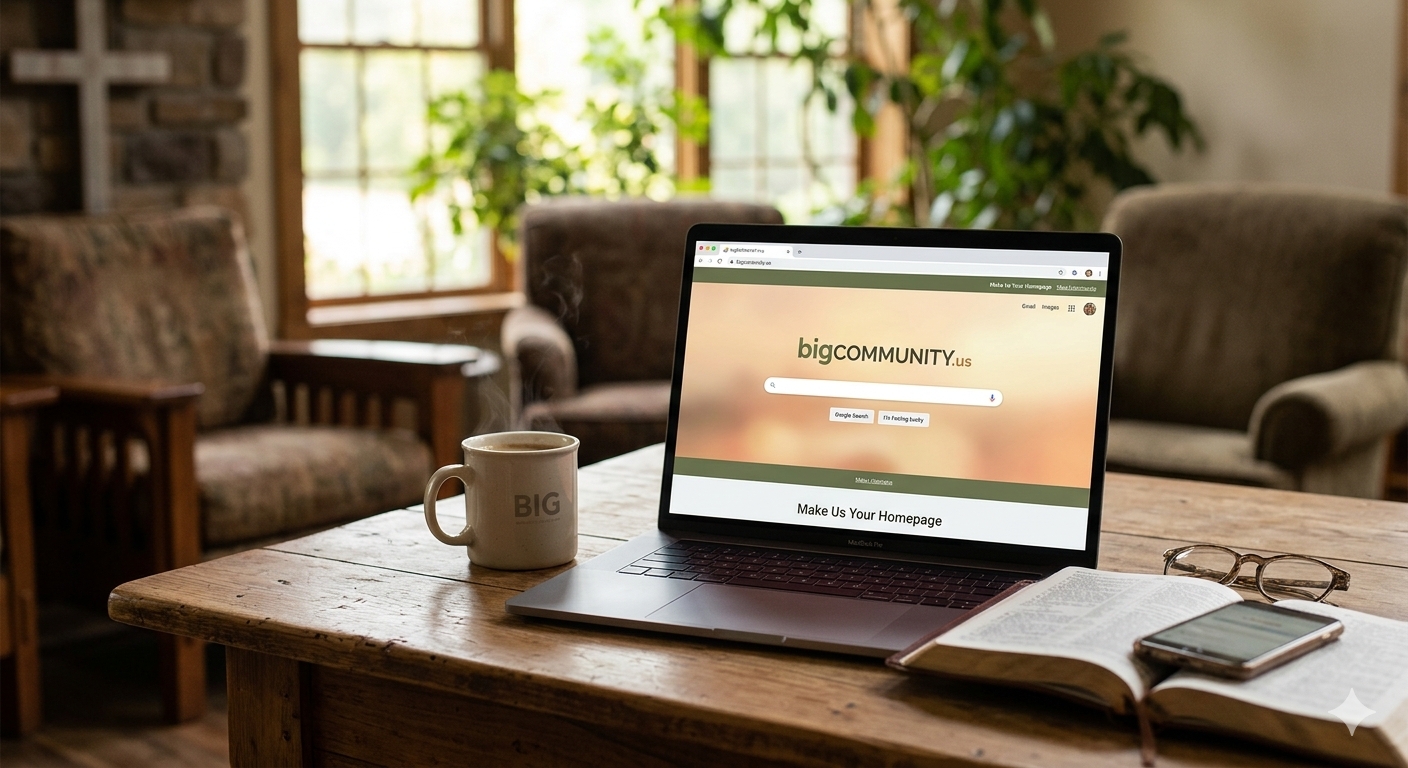
Today, we are launching a new campaign to make bigcommunity.us the launchpad for your digital day. We’ve added a lightning-fast Google Search bar right at the top of our homepage that opens results in a separate tab. By setting our platform as your browser’s default homepage, you block out the corporate media algorithms and ground your internet browsing in a space of faith, unity, and fellowship every single time you open your device.
Here is your step-by-step guide to making the bigCOMMUNITY your default home screen across all major browsers.
How to Change Your Homepage (Step-by-Step)
🌐 On Google Chrome (Desktop)
- Open Chrome and navigate to https://bigcommunity.us.
- Click the three vertical dots in the top-right corner of your browser window and select Settings.
- On the left sidebar, click on Appearance.
- Toggle the switch for Show home button to ON.
- Select the second radio button option, copy and paste
https://bigcommunity.usinto the text field, and close the settings tab.
Now, whenever you click the little “House” icon next to your address bar, you’re instantly brought back home.
🦊 On Mozilla Firefox
- Visit https://bigcommunity.us.
- Look at the tab at the top of your screen that says “bigCOMMUNITY”.
- Click and hold that tab with your mouse click, drag it directly over to the Home icon (the house symbol) on your toolbar, and let go of the mouse.
- Click Yes when the prompt asks if you want to set this URL as your homepage.
🧭 On Microsoft Edge
- Open Edge, click the three horizontal dots in the top-right corner, and select Settings.
- On the left menu, click Start, home, and new tabs.
- Under the Home button section, ensure the toggle is turned ON.
- Click Set button URL, type in
https://bigcommunity.us, and click Save.
📱 On Mobile iPhones & iPads (Safari Shortcut)
Apple Safari doesn’t use a traditional homepage, but you can create a gorgeous app icon right on your phone’s home screen:
- Open Safari on your phone and go to https://bigcommunity.us.
- Tap the Share button (the square icon with an arrow pointing up at the bottom of the screen).
- Scroll down the list of options and tap Add to Home Screen.
- Name it bigCOMMUNITY and tap Add in the top right corner.
An elegant icon will appear on your phone screen, letting you launch into our sanctuary with a single tap.
Share the Movement with the bigCOMMUNITY
Small habits build monumental movements. By taking 60 seconds to anchor your browser to this independent platform, you help ensure our shared vision stays at the forefront of your daily walk.
- Were you able to successfully set up your new home screen launchpad using the instructions above?
- What browser are you using to stay connected with us?
Let’s talk about it in the comments below.
Drop a line letting us know you’ve set your launchpad, or ask for help if your specific device is acting up. Let’s strengthen our connections right here!
Leave a Reply